How to Disable Startup Apps in Windows 11
Start here
Go to Settings > Apps > Startup and turn off the apps you do not need when Windows starts. That is the easiest way. Disabling a startup app does not uninstall it — you can still open it later from the Start menu.
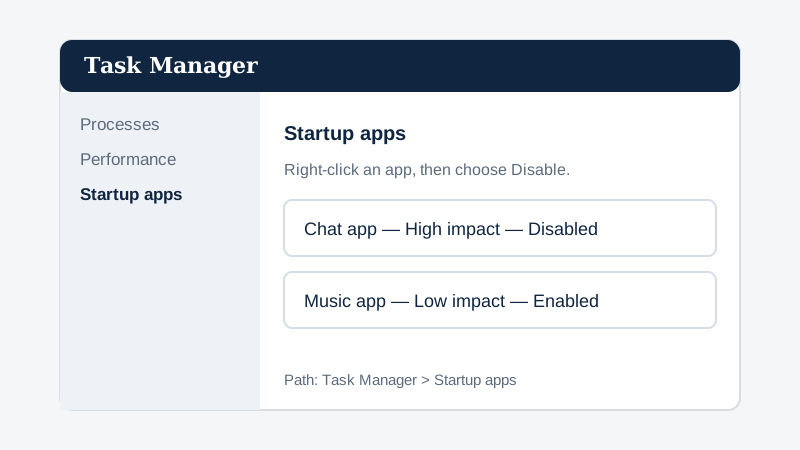
What to try first
| What you want | Use | Time |
|---|---|---|
| Turn off one or two apps quickly | Method 1 — Settings | 1 minute |
| See which apps slow startup most | Method 2 — Task Manager (shows “High” impact) | 2 minutes |
| Turn an app back on | Either method — turn it back to On / Enable | 1 minute |
Method 1: Disable startup apps in Settings
- Open Settings. Press Windows key + I, or select Start > Settings.
- Go to Apps > Startup.
- You will see a list of apps with a switch next to each one. Apps set to On open when Windows starts.
- Turn Off any app you do not need at startup — for example, chat apps, music apps, or cloud storage you rarely use.
- Close Settings and restart your PC to feel the difference.
Method 2: Disable startup apps in Task Manager
- Press Ctrl + Shift + Esc to open Task Manager.
- Select Startup apps in the left menu. If you do not see it, select More details first.
- Look at the Startup impact column. Apps marked High slow startup the most.
- Right-click an app you do not need at startup and choose Disable.
- Close Task Manager and restart your PC.
Which startup apps should I turn off?
Safe to turn off for most people: chat apps, music and video apps, game launchers, and cloud apps you open only sometimes. Keep on: your antivirus or security app, audio or hardware apps your PC needs, and any app you want ready the moment Windows starts — for example, your email app if you check it first thing. If you turn something off and miss it, turn it back on. Nothing is deleted.
What if the app is not in the Startup list?
Some apps do not appear in the Startup list because they start in a different way. Open the app itself and look in its settings for “Launch at startup”, “Open at login”, or “Start when Windows starts”, and turn that option off. If the app has no such setting, check Task Manager’s Startup tab as well — the two lists are not always identical.
Frequently asked questions
Does disabling a startup app uninstall it?
No. The app stays installed. It just does not open by itself when Windows starts. You can still open it from the Start menu any time.
Will this make my PC faster?
Yes, in most cases. Fewer apps at startup means Windows finishes starting sooner, and more memory is free for the apps you actually use.
How do I turn a startup app back on?
Go back to Settings > Apps > Startup and turn the app back to On, or in Task Manager right-click it and choose Enable.
Why is an app still opening at startup after I turned it off?
The app may have its own “launch at startup” setting inside the app. Open the app, go to its settings, and turn that option off. Or check both Settings and Task Manager — one may still list it as enabled.
Sources
Steps in this guide follow Microsoft guidance for Windows 11 startup apps in Settings and Task Manager. See Microsoft — Take control of your Windows startup and Microsoft Support for the latest official help. If a Settings path has changed in a newer Windows update, tell us and we will update this guide.