Wi-Fi Not Working on Windows 11? 10 Fixes to Try
Start here
First, check if other devices can use the same Wi-Fi. If they cannot, the problem is your router or internet service — restart the router. If other devices work fine, the problem is your PC. Restart your PC, then run the Network troubleshooter in Settings > System > Troubleshoot > Other troubleshooters > Network and Internet.
What to try first
| Symptom | Try first | Time |
|---|---|---|
| No Wi-Fi at all, other devices also offline | Fix 1 — restart the router | 5 minutes |
| Wi-Fi icon is missing | Fix 3 — check Wi-Fi is on, then Fix 8 — disable and re-enable the Wi-Fi adapter | 5 minutes |
| Connected but “No internet” | Fix 2 — restart PC, then Fix 4 — forget and reconnect | 5 minutes |
| Wi-Fi keeps dropping | Fix 6 — update the driver, then Fix 7 — move closer to the router | 10 minutes |
The fixes, in order
- Restart your router. Unplug the router, wait 30 seconds, plug it back in, and wait 2–3 minutes. Also check that the cables are firmly plugged in. If other devices still have no internet, contact your internet provider.
- Restart your PC. Use Start > Power > Restart. A restart fixes many temporary Wi-Fi problems.
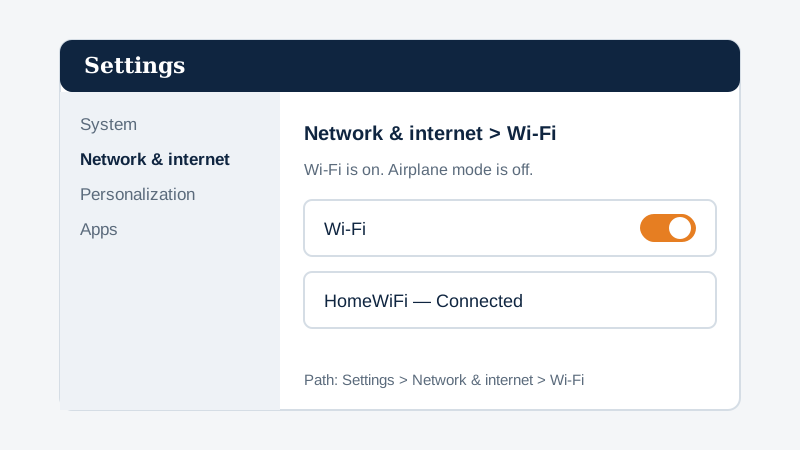
- Check Wi-Fi is turned on. Select the network icon on the taskbar. Make sure Wi-Fi is on and Airplane mode is off. On some laptops, there is also a physical Wi-Fi switch or a function key — check that it is on.
- Forget the network and reconnect. Go to Settings > Network & internet > Wi-Fi > Manage known networks. Select your network, choose Forget, then connect again and type the Wi-Fi password. You will need the password — check the router label or ask the person who set it up.
- Run the Network troubleshooter. Go to Settings > System > Troubleshoot > Other troubleshooters. Next to Network and Internet, select Run. Follow what it suggests.
- Update the Wi-Fi driver. Go to Settings > Windows Update > Advanced options > Optional updates and install driver updates if any are listed. You can also open Device Manager, expand Network adapters, right-click your Wi-Fi adapter, and choose Update driver.
- Move closer to the router, or remove interference. Thick walls, metal, and other electronics can weaken Wi-Fi. Try the same room as the router. If it works there, the signal is the problem, not your PC.
- Disable and re-enable the Wi-Fi adapter. Open Device Manager, expand Network adapters, right-click your Wi-Fi adapter, choose Disable device, wait a few seconds, then right-click again and choose Enable device.
- Reinstall the Wi-Fi driver. In Device Manager, right-click your Wi-Fi adapter and choose Uninstall device. Then restart your PC — Windows will reinstall the driver automatically. Warning: only do this if you have another way to get online, or the driver file saved on your PC — if Windows cannot find the driver, Wi-Fi may stay off. Do this only if you can restart and you have no unsaved work open.
- Network Reset — last resort. Go to Settings > Network & internet > Advanced network settings > Network reset and select Reset now. Warning: write down your Wi-Fi password first. This removes all saved Wi-Fi networks and passwords, so you will need to reconnect and retype passwords afterwards. Restart your PC after the reset.
What if it is still not working?
If Wi-Fi works on other devices but not on your PC after all 10 fixes, the Wi-Fi adapter in your PC may be faulty, or Windows may need a repair. Try a USB Wi-Fi adapter as a quick test, or take the PC to a repair shop. If Wi-Fi stopped working right after a Windows update, check Settings > Windows Update > Update history and look for a recent update — you can uninstall a recent update from there, but only as a test, and reinstall updates afterwards.
Frequently asked questions
Why does my Wi-Fi say “Connected, no internet”?
Your PC is connected to the router, but the router has no internet. Restart the router first. If other devices show the same message, contact your internet provider.
Why is there no Wi-Fi icon on Windows 11?
Wi-Fi may be off, Airplane mode may be on, or the driver may have a problem. Check the taskbar network icon, then try Fix 5 (troubleshooter) and Fix 6 (update driver).
Why does Wi-Fi keep disconnecting?
Common causes are a weak signal, an old driver, or interference. Move closer to the router, update the driver, and forget and reconnect to the network.
Will Network Reset delete my files?
No, it does not delete your files. It only removes network settings — saved Wi-Fi networks, passwords, and VPN settings. You will need to reconnect to Wi-Fi afterwards.
Sources
Steps in this guide follow Microsoft Support guidance for Windows 11 Wi-Fi and network problems, including the Network troubleshooter and Network Reset. See Microsoft Support — Fix Wi-Fi connection issues in Windows for the latest official help. If a Settings path has changed in a newer Windows update, tell us and we will update this guide.