How to Speed Up Windows 11: 9 Fixes That Actually Help
Start here
Most slow Windows 11 PCs get faster after three things: turn off apps that open at startup, free up storage, and install Windows updates. Do those first. Then restart your PC and see if it feels faster before you try the other fixes below.
What to try first
| Symptom | Try first | Time |
|---|---|---|
| PC is slow right after you turn it on | Fix 1 — turn off startup apps | 2 minutes |
| PC is slow all the time, apps open slowly | Fix 2 — free up storage, then Fix 3 — update Windows | 10 minutes |
| PC was fine yesterday, slow today | Fix 4 — restart, then Fix 3 — check for updates | 5 minutes |
| Games or video are slow or stutter | Fix 6 — update drivers, then Fix 7 — check power mode | 10 minutes |
The fixes, in order
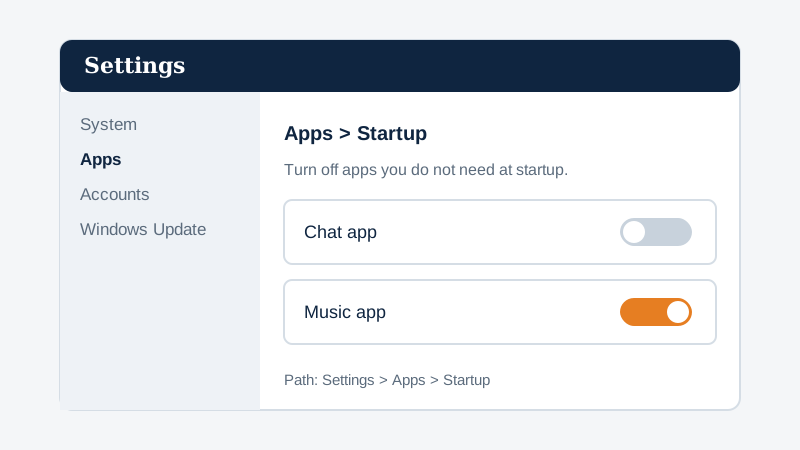
- Turn off startup apps. Go to Settings > Apps > Startup. Turn off apps you do not need at startup, such as chat or music apps. Keep your security software on. See the full guide: How to Disable Startup Apps in Windows 11.
- Free up storage. Go to Settings > System > Storage. Turn on Storage Sense, then use Temporary files to delete files you no longer need. Windows needs free space to work well — aim for at least 10–20 GB free if you can.
- Update Windows. Go to Settings > Windows Update and select Check for updates. Install any updates, then restart. Updates often fix slowdowns and bugs.
- Restart your PC. A restart clears temporary files and stuck processes. Use Start > Power > Restart, not just Sleep. If you have not restarted in days, do this first.
- Uninstall apps you do not use. Go to Settings > Apps > Installed apps. Sort by size, and uninstall large apps you no longer use. Do not uninstall apps you do not recognise — search the name first.
- Update your drivers. Go to Settings > Windows Update > Advanced options > Optional updates and install driver updates if any are listed. For graphics problems, also check the website of your PC or graphics card maker.
- Use Best performance power mode. Go to Settings > System > Power & battery. Under Power mode, choose Best performance when your laptop is plugged in. Note: this uses more battery.
- Turn off visual effects you do not need. Select Start, type Adjust the appearance and performance of Windows and open it. On the Visual Effects tab, choose Adjust for best performance. Or turn off transparency in Settings > Personalization > Colors.
- Check for malware. Go to Settings > Privacy & security > Windows Security > Virus & threat protection > Quick scan. Malware can slow a PC a lot. If the scan finds something, follow the steps Windows Security shows.
What if it is still slow?
If none of these fixes help, check two things. First, open Task Manager with Ctrl + Shift + Esc, go to Processes, and look for one app using most of your CPU, memory, or disk. That app may be the problem — update it or uninstall it. Second, if your PC has a very old hard drive (HDD) instead of an SSD, that alone can make Windows 11 feel slow. Upgrading to an SSD is the biggest speed upgrade for an old PC, but it is a hardware change — ask a repair shop if you are not sure.
Frequently asked questions
Why is Windows 11 slow after an update?
After an update, Windows may finish background tasks for a while. Restart, wait 10–15 minutes, then check for more updates. If it stays slow for a day, try Fixes 1–3 above.
Does turning off startup apps really help?
Yes — it is the fastest win for most people. Fewer apps at startup means Windows finishes starting sooner and has more memory free for the apps you actually open.
How much free storage does Windows 11 need?
Windows 11 needs at least 64 GB of storage to install, but it works better with free space to spare. Aim for at least 10–20 GB free.
Should I use a registry cleaner?
No. Registry cleaners rarely help and can break Windows. Microsoft does not recommend them. Use the steps in this guide instead.
Sources
Steps in this guide follow Microsoft Support guidance for Windows 11, including help on startup apps, storage, Windows Update, and Windows Security. See Microsoft Support — Tips to improve PC performance in Windows for the latest official help. If a Settings path has changed in a newer Windows update, tell us and we will update this guide.